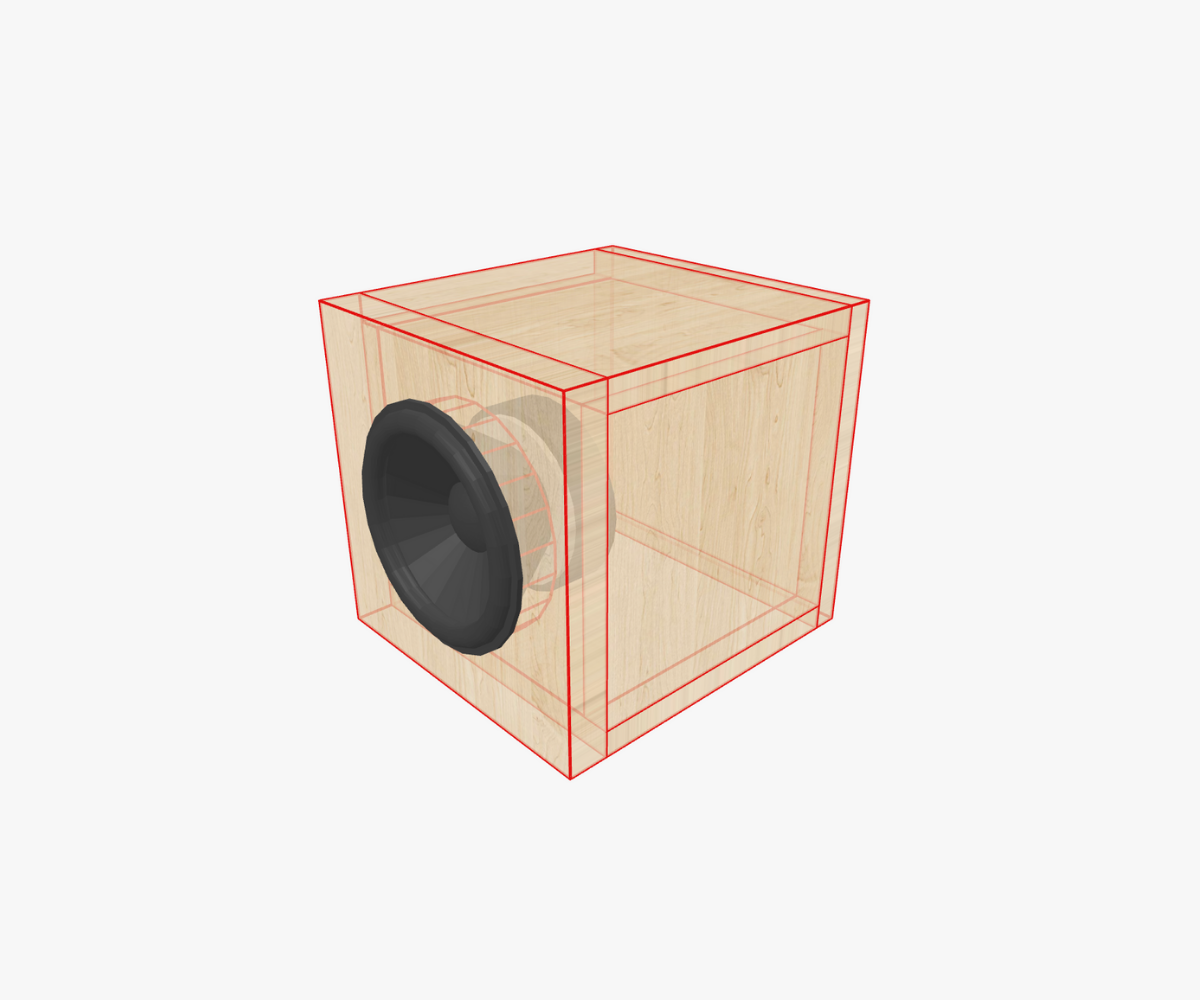
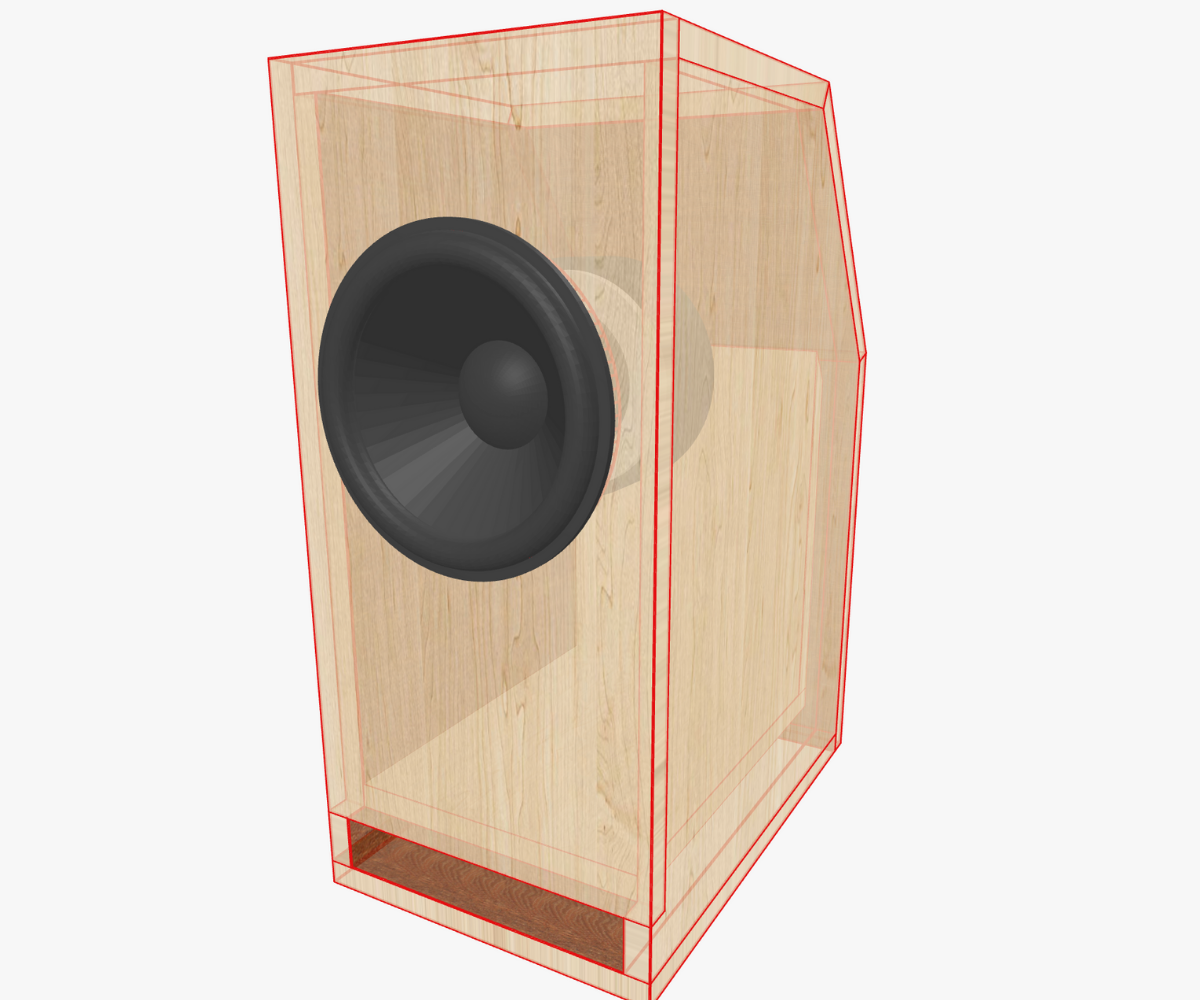
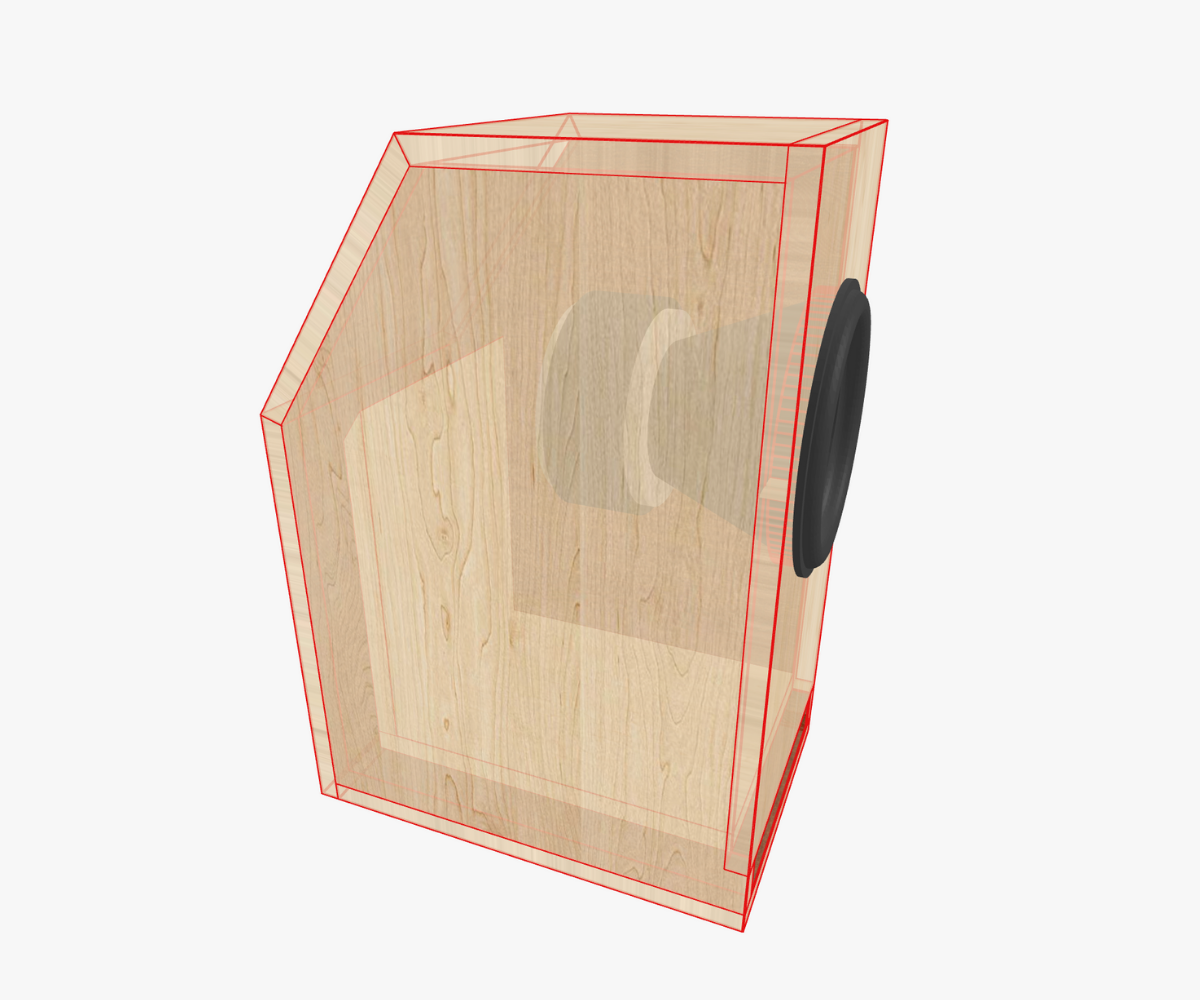
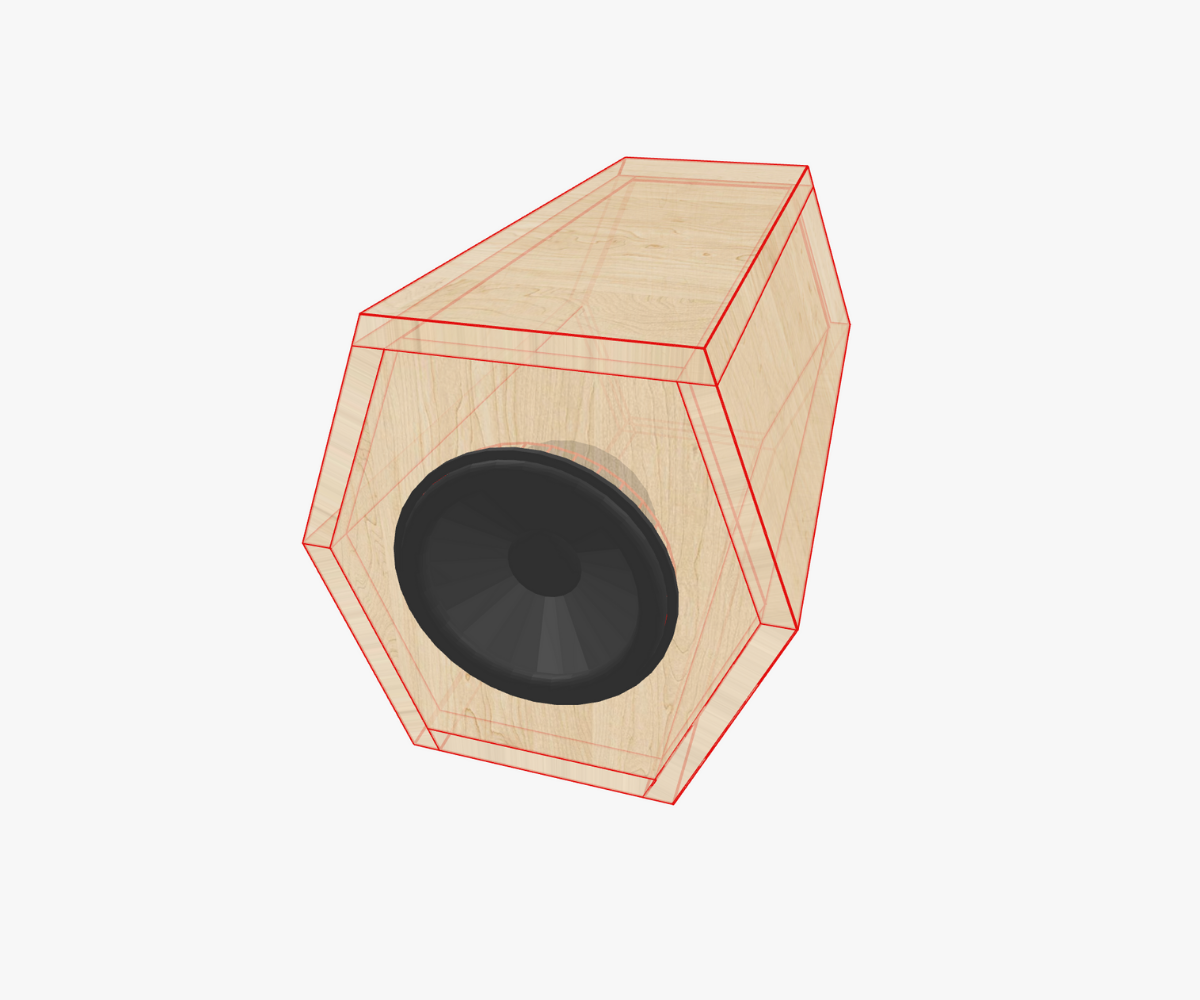
The Core of Box Design: Why Dimensions Matter
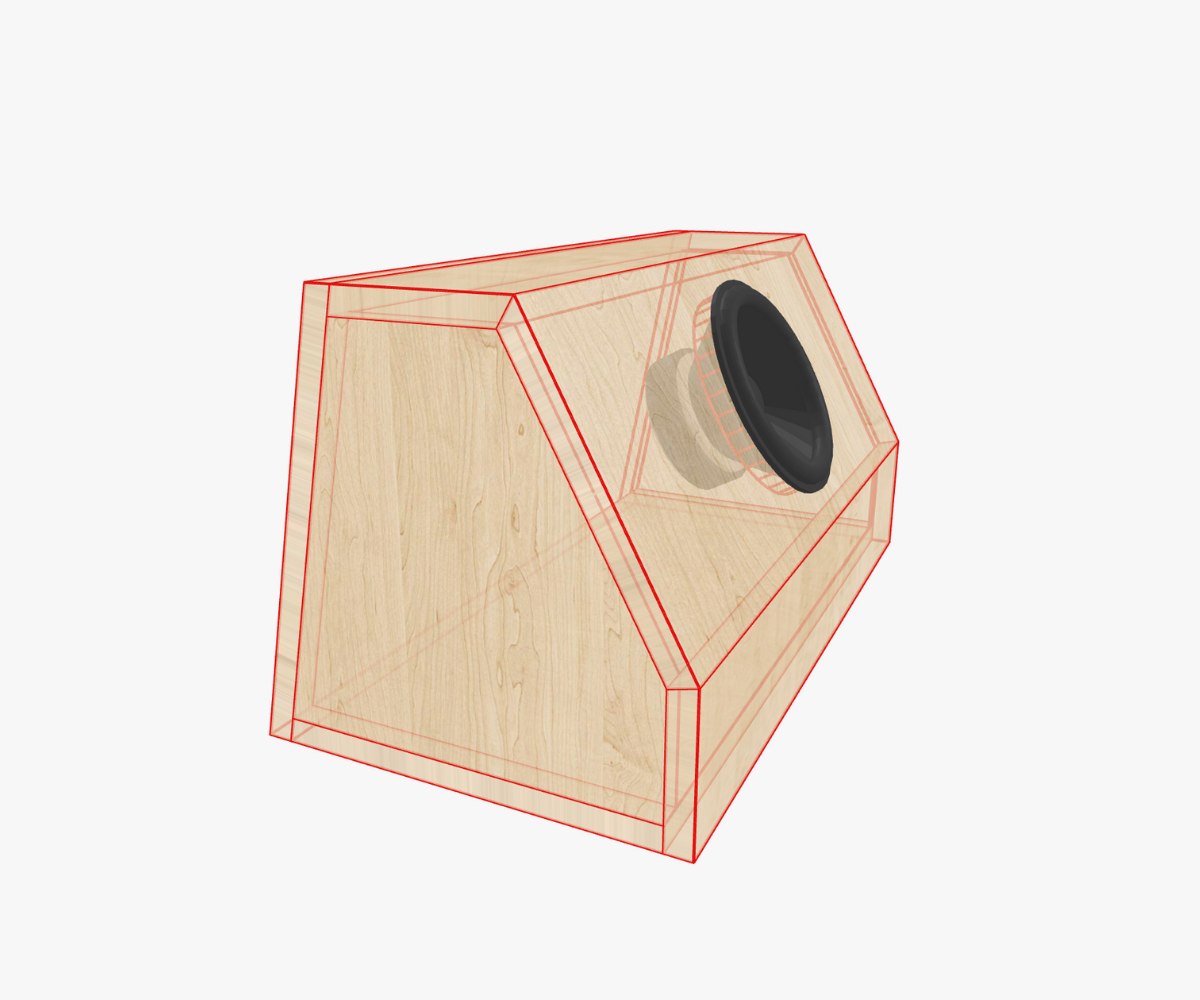
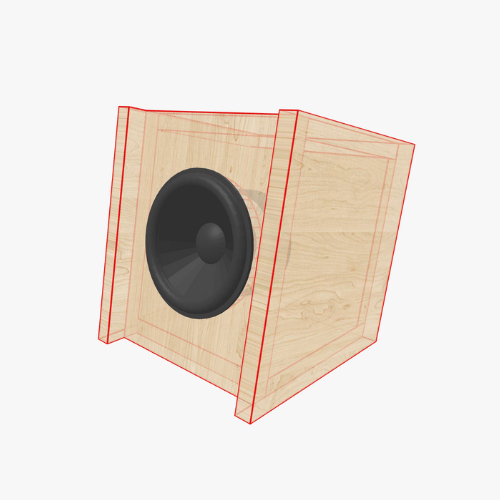
Every loudspeaker enclosure starts with three physical constraints: width, height, and length. These may look like just numbers in a properties window, but in practice they dictate far more than the raw geometry of your box. The chosen dimensions shape the internal volume, define the available surface area for drivers and ports, and ultimately decide how your loudspeaker integrates into a listening room, a car trunk, or a studio setup.
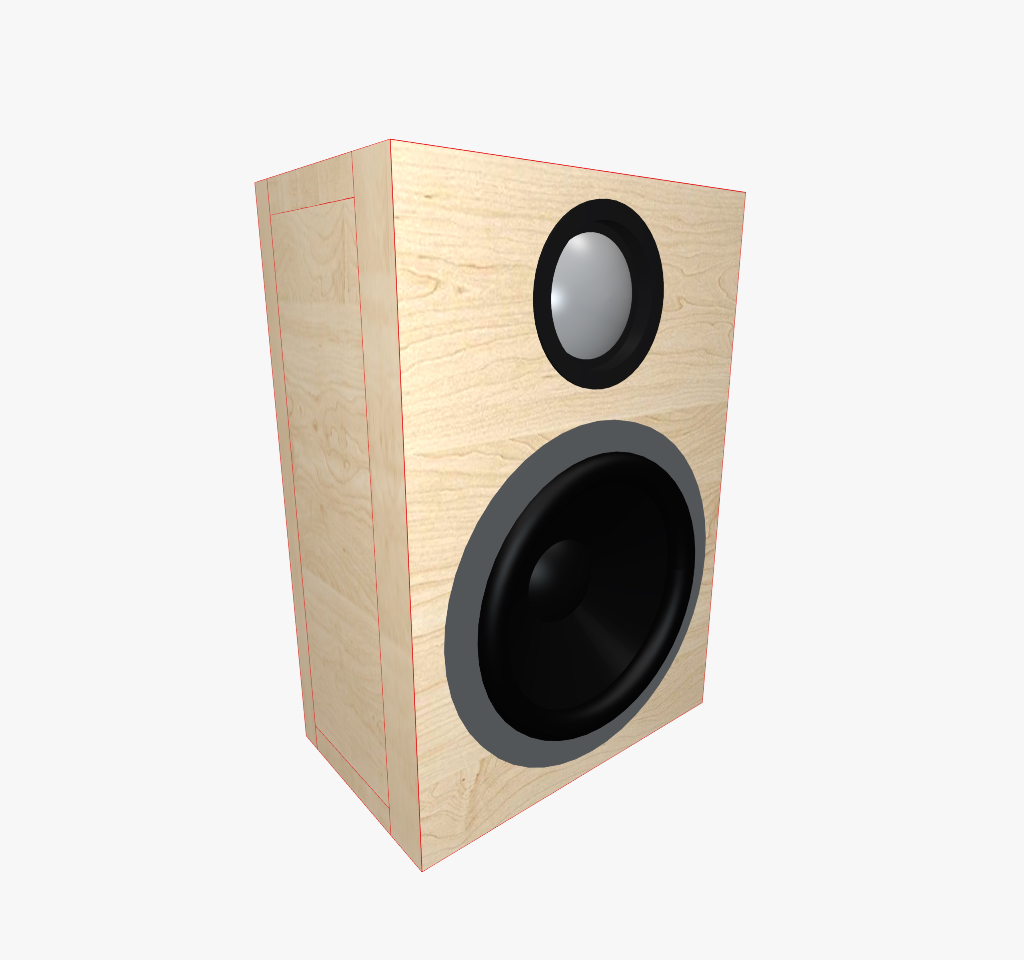
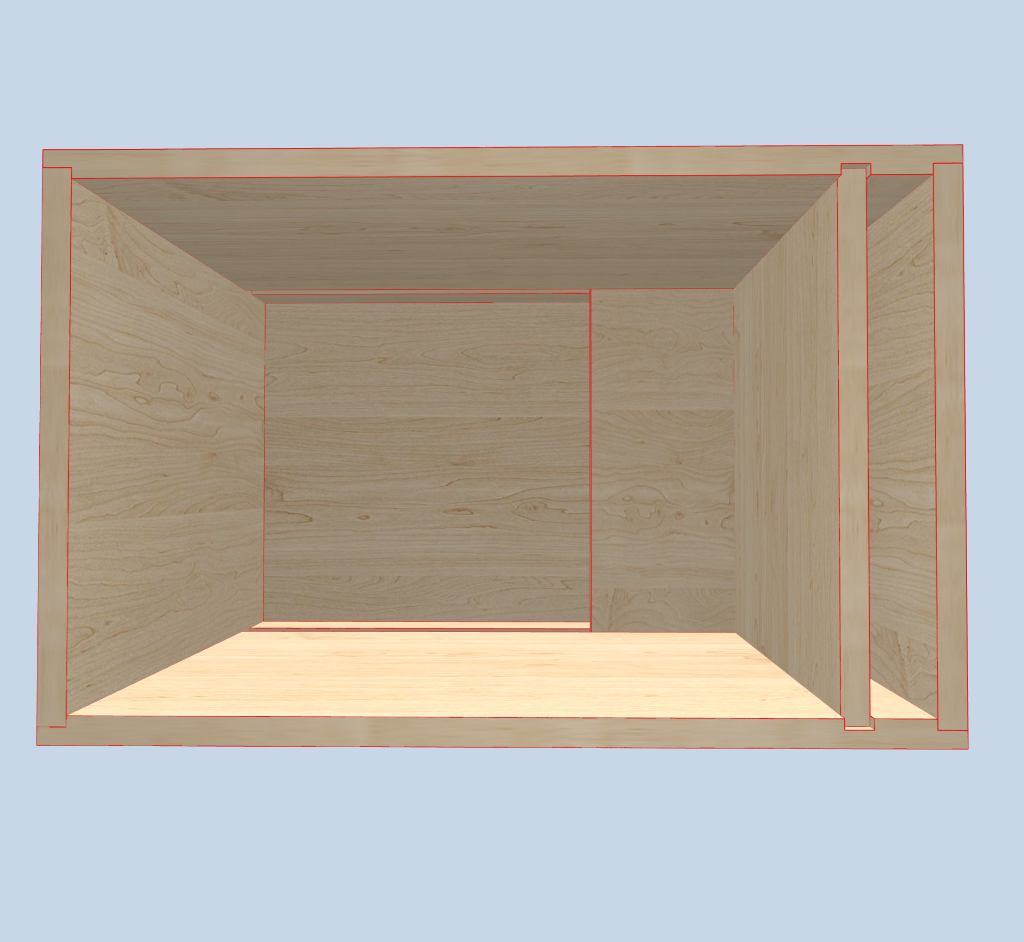
Traditionally, designers split this task between two different tools — one program to calculate enclosure parameters, and a separate CAD package to model the physical box. The drawback is clear: if you later decide to correct the volume or alter the geometry, you must restart the entire process almost from scratch. Speaker Box Lite eliminates this disconnect. Both the acoustic math and the 3D geometry live in the same environment, so when you make adjustments the redesign flows automatically, saving enormous amounts of time and frustration.
In Speaker Box Lite, dimensions are not simply entered values; they are part of a structured system. This system gives you freedom to either fix the acoustic volume (Lock VB) and let the software recalculate geometry, or to manually define every side of the enclosure, watching how the program evaluates the usable volume. Understanding this workflow is essential if you want your design to be both acoustically correct and physically practical.