Merancang Box Bookshelf Sealed Kecil untuk Setup Komputer Anda
Ikuti langkah-langkah merancang enclosure speaker bookshelf sealed (closed) untuk setup komputer menggunakan Speaker Box Lite. Kita akan memilih driver, mensimulasikan volume, membentuk box, mengatur dimensi, memasang speaker, dan menyiapkan blueprint final untuk pemotongan dan perakitan.
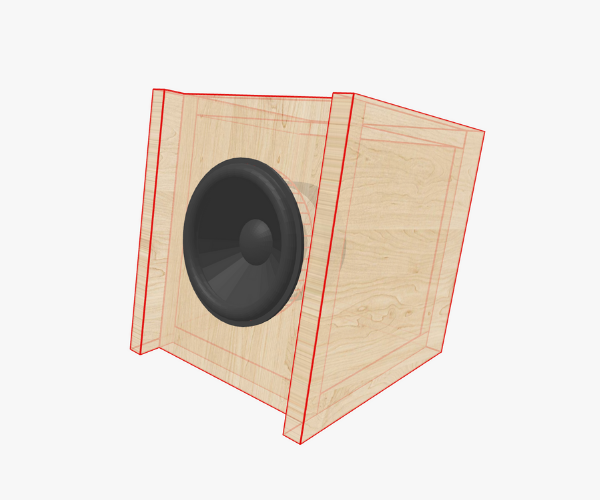
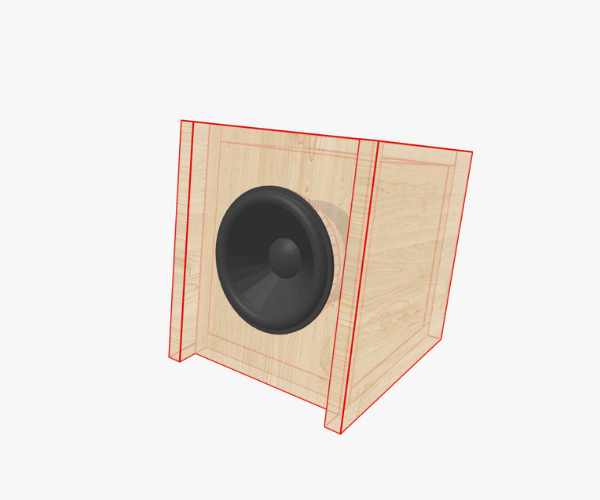
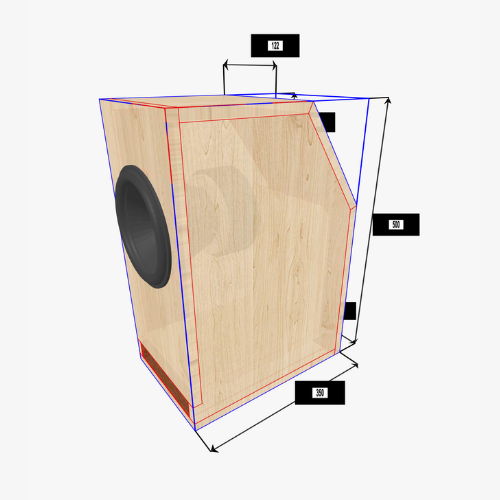
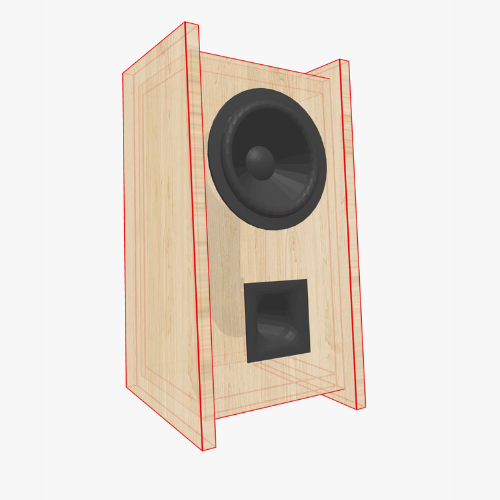
Pada bagian awal, mari kita perjelas tujuan kita: dalam panduan ini kita ingin mencapai hasil yang sama seperti yang ditunjukkan pada tangkapan layar di bagian atas artikel. Setiap langkah yang dijelaskan di sini - mulai dari pemilihan driver hingga pembentukan boks dan penyempurnaan tampilannya - diarahkan untuk membuat ulang contoh persis tersebut. Tentu saja, Anda bebas untuk menyesuaikan prosesnya dengan selera dan konfigurasi Anda sendiri.
Gambar mendemonstrasikan hasil yang ingin kita capai.
Mengapa Memulai dengan Box Tertutup?
Saat membangun penutup speaker Anda sendiri, box tertutup (sealed box) adalah salah satu desain yang paling mudah dipelajari dan memberikan hasil yang memuaskan. Berbeda dengan penutup jenis ported atau band-pass, box tertutup tidak bergantung pada ventilasi, saluran, atau resonator yang disetel. Sebaliknya, desain ini memberikan suspensi akustik yang terkendali untuk driver speaker, menghasilkan bass yang padat dan akurat serta respons midrange yang halus.
Untuk pengaturan kecil seperti sistem speaker desktop atau komputer, pendekatan ini sangat menonjol. Anda tidak selalu menginginkan nada rendah menggelegar yang menggetarkan dinding - Anda menginginkan kejernihan, detail, dan output terkendali yang pas untuk jarak dengar dekat. Di sinilah boks bookshelf tertutup berperan. Bentuknya ringkas, presisi, dan dapat disesuaikan dengan ruang yang tersedia.
Memilih Driver Speaker yang Tepat
Setiap desain boks dimulai dengan driver. Untuk proyek kita, saya akan menggunakan Dayton Audio TCP115-8, sebuah woofer midbass 4 inci dengan parameter yang menjadikannya kandidat luar biasa untuk boks tertutup kecil.
Di Speaker Box Lite, Anda dapat memilih driver ini secara langsung dari database bawaan (yang mencakup ribuan driver dari berbagai merek) atau memasukkan parameter produsen dari lembar data. Setelah driver ditentukan, perangkat lunak akan segera menghitung kemungkinan boks berdasarkan parameter Thiele-Small miliknya.
Di sinilah desain menjadi perpaduan antara sains dan seni.
Mencari Volume Box yang Tepat
Pada tab Enclosure, Anda akan melihat beberapa opsi awal untuk menghitung volume internal box tertutup:
Chebyshev C2 daya maksimum (Chebyshev C2 max power)
Masing-masing metode ini menghasilkan volume target dan kurva respons frekuensi yang berbeda. (Jika Anda ingin tahu lebih banyak tentang teori mendalam di baliknya, Anda dapat membaca lebih lanjut di artikel ini)
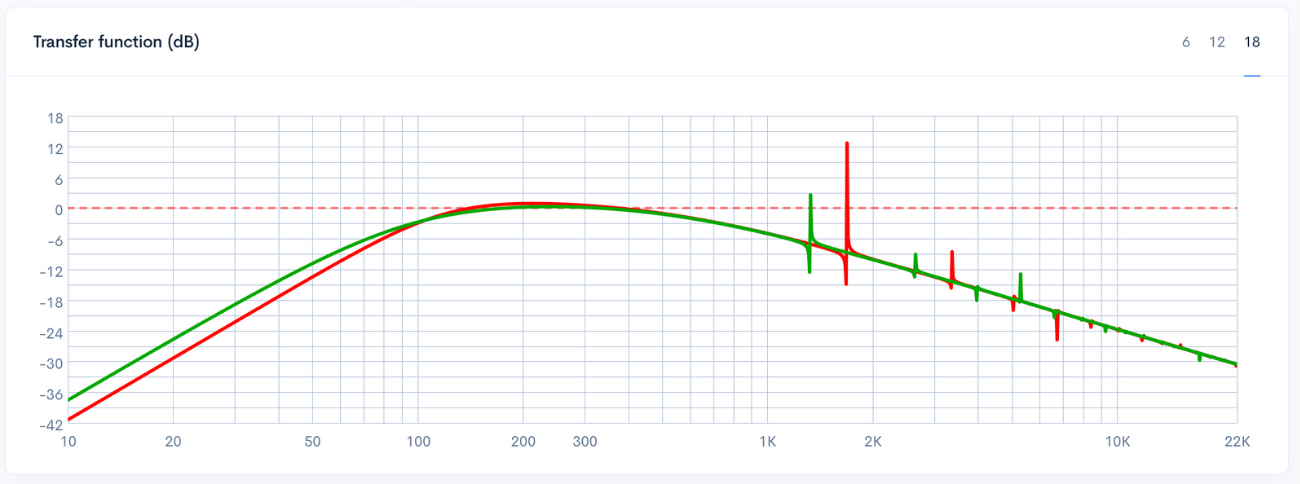
Gambar menunjukkan hasil dari Amplitudo datar maksimum Butterworth-B2 (Max flat amplitude Butterworth-B2) (Merah) dan Delay datar maksimum Bessel-BL2 (Max flat delay Bessel-BL2) (Hijau).
Untuk eksperimen ini, saya mencoba Amplitudo datar maksimum Butterworth-B2 (Max flat amplitude Butterworth-B2) dan Delay datar maksimum Bessel-BL2 (Max flat delay Bessel-BL2). Yang pertama memberikan hasil sekitar 1,08 liter (ditampilkan dalam warna merah pada grafik respons), sedangkan yang kedua menyarankan 2,23 liter (kurva hijau).
Namun, inilah poin pentingnya: Anda tidak diharuskan memilih salah satu dari rekomendasi ini dan berhenti di situ. Ini hanyalah titik awal, bukan aturan mutlak. Speaker Box Lite memungkinkan Anda menampilkan beberapa plot secara berlapis sehingga Anda dapat membandingkan hasilnya secara visual. Secara pribadi, saya lebih menyukai kurva hijau karena memberikan output yang lebih tinggi pada frekuensi rendah. Namun, ukuran boks menjadi lebih besar daripada yang bisa saya muat ke dalam susunan peralatan saya secara wajar. Itulah sebabnya saya memutuskan untuk bereksperimen lebih lanjut dengan volume boks.
Saya memutuskan untuk mengambil jalan tengah: 1,7 liter (garis oranye). Ini adalah kompromi antara ukuran dan performa. Kurva responsnya sedikit lebih rendah dibandingkan desain 2,23 liter, tetapi saya menghemat setengah liter ruang - sangat penting agar boks dapat diletakkan dengan nyaman di area meja komputer saya.
Langkah ini mengilustrasikan prinsip berharga dalam desain boks: Anda menyeimbangkan “kesempurnaan” teoretis dengan kebutuhan praktis dan selera pribadi.
Beralih ke Desain Boks 3D
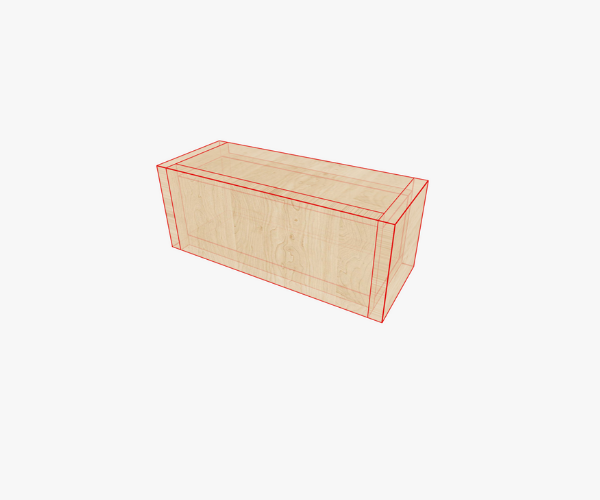
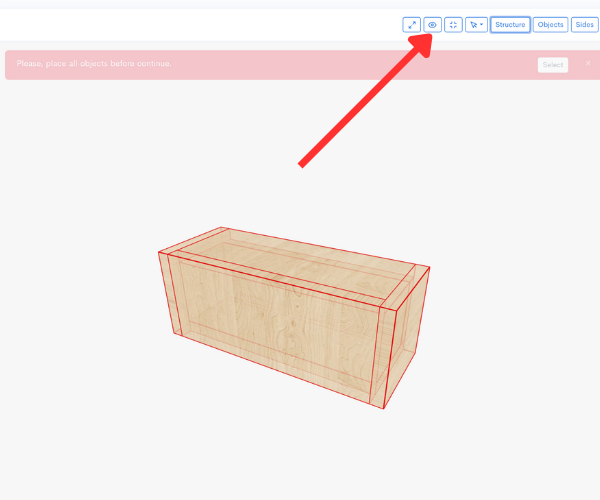
Setelah volume internal dipilih, saatnya untuk menghidupkan boks tersebut. Beralih ke tab 3D Box di Speaker Box Lite, Anda akan disambut dengan boks persegi panjang default.
Boks dengan lebar, tinggi, dan panjang default.
Sekilas, ini hanyalah sebuah blok sederhana - namun di sinilah kreativitas dimulai. Perangkat lunak ini memungkinkan Anda untuk mengubah bentuk dasar boks, yang pada dasarnya mendefinisikan ulang bagaimana boks tersebut diekstrusi dalam ruang 3D.
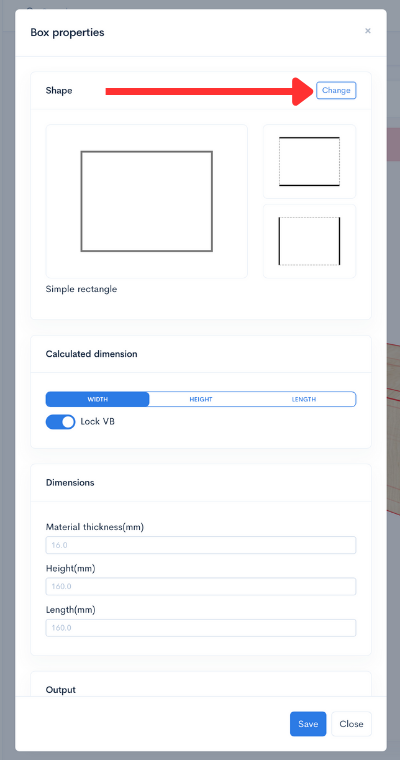
Untuk speaker desktop saya, saya ingin boksnya sedikit miring ke arah wajah saya. Dengan cara itu, driver mengarah langsung ke telinga saya alih-alih mengarah lurus ke depan atau ke atas. Untuk mencapai hal ini, saya memilih fondasi Trapesium satu sisi (One-side Trapezoid).
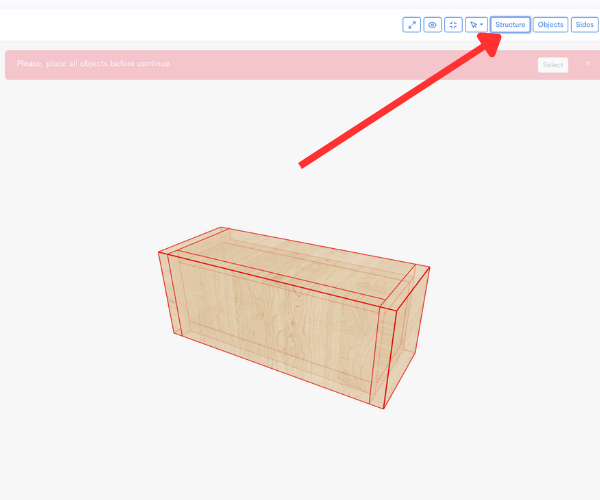
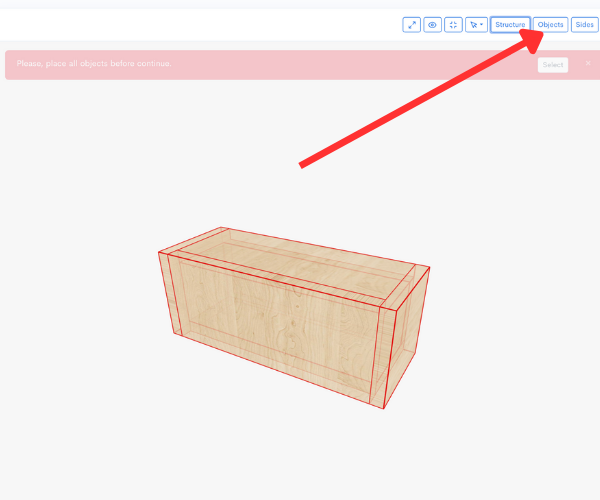
Langkah-langkah untuk membuka jendela Properti Boks.
Anda dapat mengakses opsi ini di layar Struktur di bawah properti boks. Ada tombol untuk mengubah tipe fondasi - setelah Anda menekannya, menu akan muncul untuk memilih opsi trapesium. Seketika, boks tersebut akan berbentuk miring, siap untuk disesuaikan lebih lanjut.
Langkah-langkah untuk mengubah fondasi boks dan ketebalan material.
Di layar yang sama, Anda juga dapat memilih ketebalan material. Untuk perakitan ini, saya memilih kayu lapis 12 mm. Material ini cukup kokoh untuk speaker kecil, ringan, dan mudah dikerjakan. Dengan pengaturan tersebut, saya Simpan (Save) perubahan dan kembali ke tampilan desain utama.
Menyesuaikan Dimensi Box
Kini tiba saatnya box berubah dari sekadar teori menjadi sebuah desain yang menyerupai furnitur.
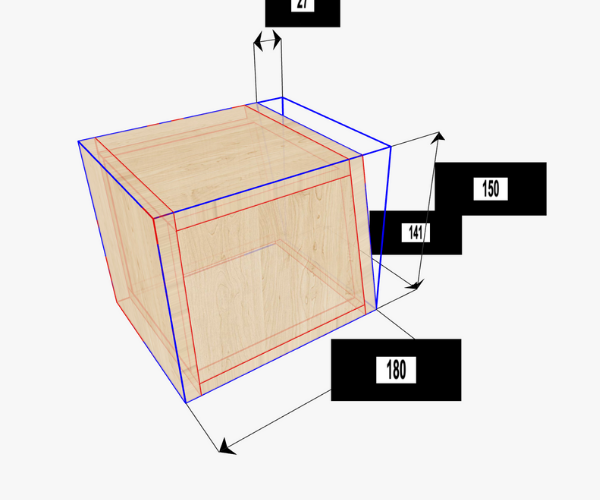
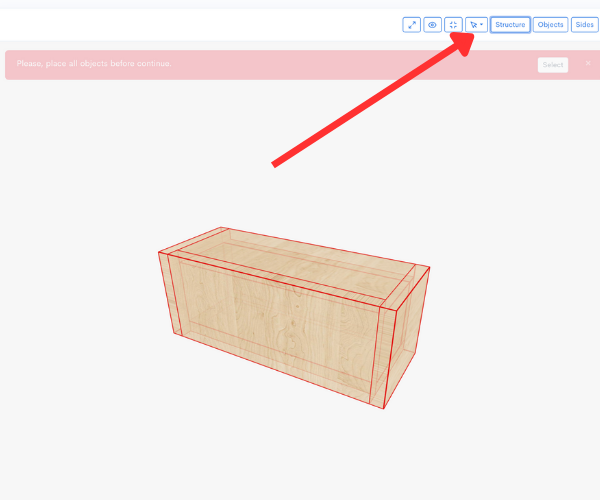
Langkah-langkah untuk mengaktifkan opsi Batas box (Box bounds).
Speaker Box Lite menawarkan mode Batas box (Box bounds) yang praktis, yang menampilkan label dimensi di atas box. Dengan mengaktifkannya, Anda dapat mengeklik langsung pada nilai tinggi, lebar, atau panjang untuk mengubahnya secara langsung.
Untuk proyek saya, saya menginginkan sesuatu yang ringkas namun proporsional. Saya memutuskan untuk menggunakan:
Tinggi: 150 mm
Panjang (kedalaman): 180 mm
Lebar menyesuaikan secara otomatis untuk menjaga volume internal sebesar 1,7 liter. Ini adalah salah satu kemudahan bekerja dengan perangkat lunak dibandingkan kalkulator - Anda melakukan penyesuaian, dan program menjaga keseimbangannya.
Membuat Sisi Depan yang Miring
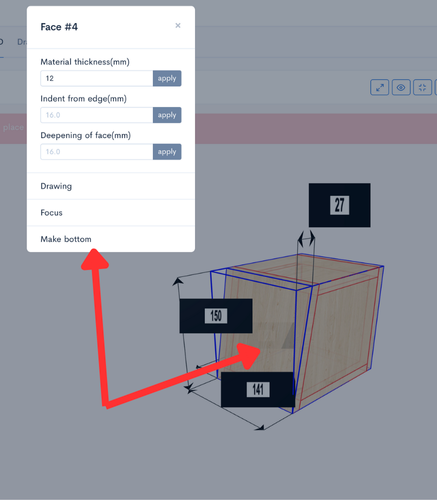
Pada tahap ini, bentuk trapesium sudah ada, tetapi saya ingin seluruh boks miring - bukan hanya sisi depannya. Untuk melakukan ini, saya mendefinisikan ulang sisi bawah trapesium sebagai dasar yang sebenarnya.
Langkah-langkah untuk mengubah orientasi boks.
Prosesnya sederhana: klik pada sisi yang diinginkan, buka menu, dan pilih “Jadikan bagian bawah”. Boks akan mengatur ulang orientasinya sendiri. Kini boks tersebut duduk miring secara alami, dengan driver yang mengarah ke atas dan ke depan, langsung ke arah pendengar.
Ini adalah penyesuaian halus, namun memberikan perbedaan besar saat merancang monitor near-field untuk meja komputer.
Memasang Speaker
Setelah boks disiapkan, saatnya untuk memasang driver.
Langkah-langkah untuk memasang speaker pada sisi boks.
Di layar Inspector objek (Objects inspector), saya memilih Dayton TCP115-8 dan mengeklik pada sisi miring di mana saya ingin memasangnya. Seketika, driver muncul di permukaan tersebut.
Dari sini, penentuan posisi sangatlah mudah: tekan dan tahan ikon driver hingga berubah menjadi cakram biru, lalu seret ke tengah permukaan. Lepaskan, dan driver akan terkunci pada posisinya.
Keunggulan Speaker Box Lite adalah caranya menggabungkan simulasi dan manipulasi seperti CAD tanpa memaksa Anda untuk mempelajari paket pemodelan 3D yang lengkap.
Menyempurnakan Tampilan Depan
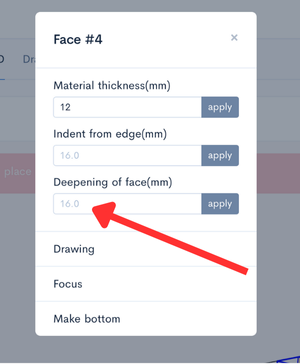
Langkah terakhir untuk mencapai tampilan yang saya bayangkan adalah memperdalam permukaan pemasangan speaker. Dengan menerapkan kedalaman 16 mm, driver kini terpasang menjorok ke dalam, memberikan tampilan profesional pada boks speaker. Pemasangan menjorok ini juga menciptakan efek halus: panel kiri dan kanan secara visual tampak menonjol ke depan melewati driver, sementara driver itu sendiri terasa menyatu dengan bodi, alih-alih sekadar ditempel di atasnya.
Langkah-langkah untuk memperdalam sisi depan boks guna mencapai hasil yang ditampilkan di awal.
Namun, percobaan pertama saya melekukkan tepi yang salah - atas dan bawah, bukannya kiri dan kanan. Untuk memperbaikinya, saya mengeksplorasi opsi Tepi Boks (Box`s Edges). Layar ini menyoroti semua tepi dengan warna hijau, dan Anda dapat mengubah jenis koneksinya.
Dengan menyesuaikan sambungan antar panel untuk bagian atas, bawah, kiri, dan kanan, saya berhasil mendapatkan tata letak yang benar: sisi-sisi vertikal memanjang ke depan, membingkai driver dengan indah.
Langkah-langkah untuk mengubah sambungan butt pada bagian sisi.
Langkah ini menunjukkan bahwa desain enclosure bukan hanya tentang akustik - ini juga tentang estetika. Boks yang bersuara hebat tetapi tampak canggung tidak akan memuaskan Anda di atas meja.
Menyiapkan Blueprint
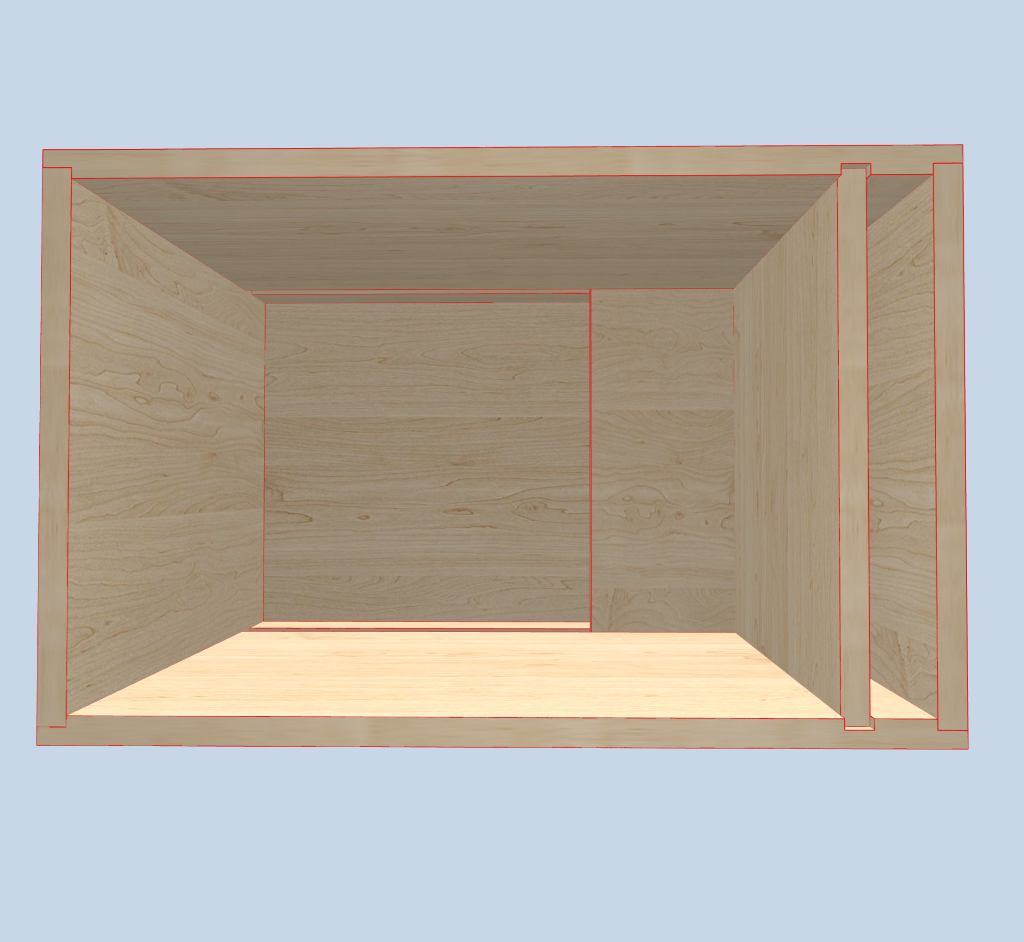
Dan itulah dia - enclosure telah siap. Untuk membawanya ke bengkel, yang saya butuhkan hanyalah layar Drawing. Fitur ini menghasilkan peta pemotongan yang presisi, lengkap dengan dimensi, ketebalan material, dan jenis sambungan.
Pada titik ini, proyek bertransformasi dari piksel menjadi kayu lapis. Potong bagian-bagiannya, rakit dengan lem dan klem, pasang driver-nya, dan Anda pun memiliki speaker bookshelf tertutup yang disesuaikan secara sempurna untuk ruangan Anda.
Refleksi terhadap Desain
Mendesain boks tertutup kecil ini menonjolkan fleksibilitas Speaker Box Lite. Saya tidak sekadar memilih angka dari grafik dan merakitnya secara asal-asalan. Sebaliknya, saya:
Menjelajahi berbagai volume boks, membandingkan grafik, dan memilih keseimbangan antara teori dan kepraktisan.
Memodifikasi bentuk boks agar sesuai dengan lingkungan mendengarkan saya.
Menyesuaikan dimensi untuk keterbatasan ruang tanpa mengurangi integritas akustik.
Mempertimbangkan performa teknis maupun hasil akhir visual.
Hasilnya? Sebuah boks tertutup kompak yang terlihat profesional, pas di meja saya, dan memberikan suara yang akurat dan musikal.
Bagi siapa pun yang terjun dalam pembuatan speaker DIY, proses ini menggambarkan sinergi antara fisika dan kreativitas pribadi. Sebuah boks tertutup mungkin sederhana, namun di balik kesederhanaannya terdapat ruang tanpa batas untuk penyempurnaan.
Kesimpulan
Boks tertutup (sealed box) tetap menjadi salah satu desain paling serbaguna untuk proyek speaker DIY. Dengan menggabungkan manfaat akustik bawaannya dengan fitur-fitur Speaker Box Lite, Anda dapat menciptakan boks yang tidak hanya berperforma baik tetapi juga menyesuaikan dengan ruang dan gaya pribadi Anda.
Baik Anda mengikuti langkah-langkah tepat di sini dengan Dayton Audio TCP115-8 atau memilih driver Anda sendiri, prosesnya tetap sama: simulasi, eksperimen, penyempurnaan, dan kemudian membangun.
Dan bagian terbaiknya? Setiap proyek yang Anda selesaikan mengajarkan Anda sesuatu yang baru - bukan hanya tentang pengeras suara, tetapi tentang seni kreatif dalam mengubah suara menjadi sesuatu yang nyata.
👉 Proyek yang dirancang dalam artikel ini juga tersedia secara langsung di Speaker Box Lite melalui tautan di sini.
Can you explain the height, width, and length of the port?
Can you please explain the height, width, and length of the port? I have changed the height of the port to different numbers but the 3d rendering does not show any changes. I don't understand. When I go to view the parts, none of the dimension change. What part of the port does height and width signify?